
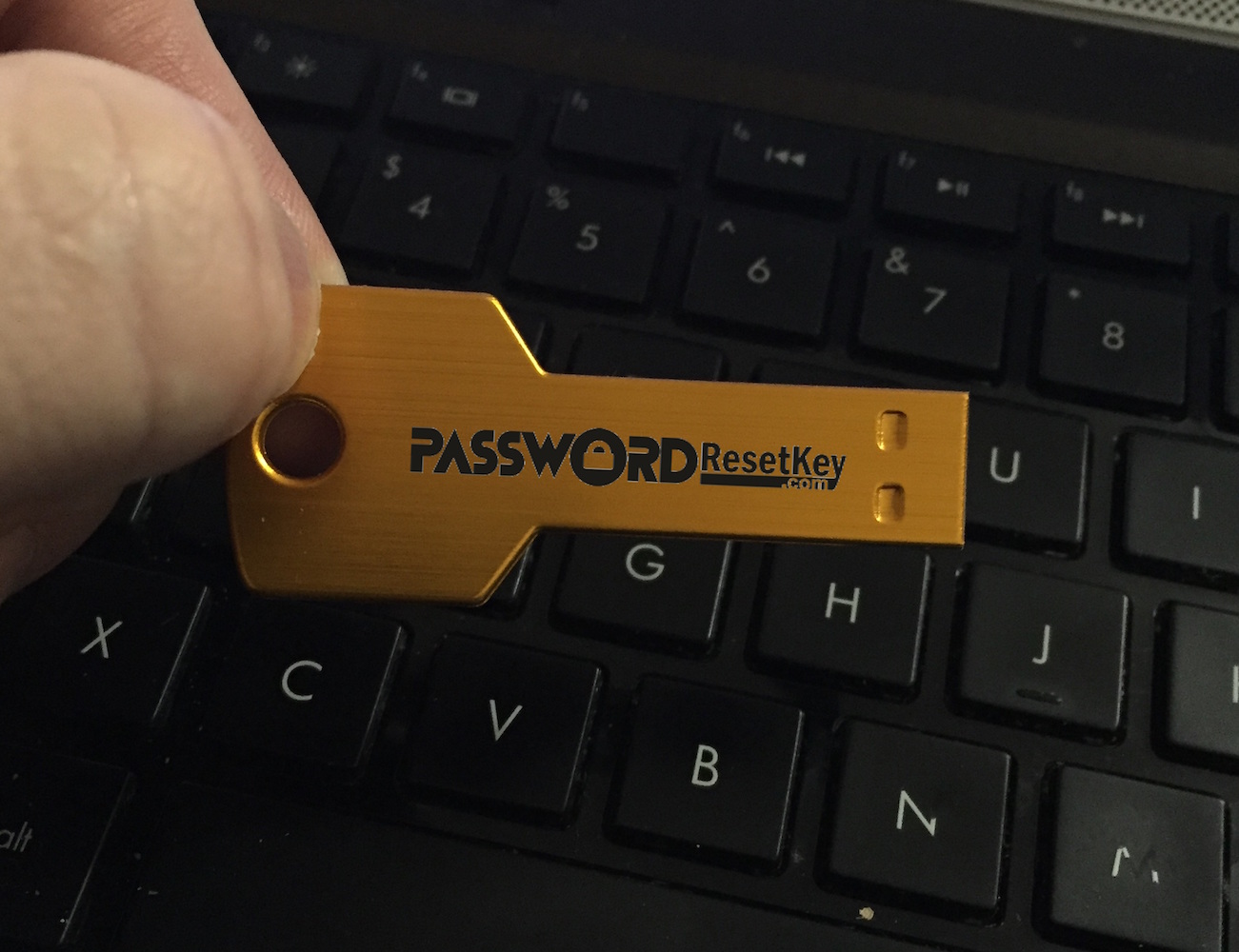
What can I do if I forgot my Windows password? Computer doesn’t recognize your password after upgrading to Windows 10? If you reinstall Windows, it would involve formatting the hard drive and permanently losing your files. In this tutorial we’ll show you 3 easiest ways to reset forgotten Windows 7, 8, 10 password, in case you’re locked out of your computer.
Method 1: Using Another Admin Account
If your computer has more than one account added, you can switch to another administrator account and reset your forgotten Windows password easily. Let’s get started:Step 1. Press the Windows key and R together. When the Run dialog box appears. Type lusrmgr.msc and click OK.

Step 2.
In the Local Users and Groups window that appears, click Users in the left pane. Find the user for which you want to reset password, double-click it and select Set Password from the popup menu.

Step 3. Click Proceed when you see a warning prompt. Afterwards, enter your new password twice and click OK. You’ll get the message “The password has been set.” Step 4. Log off and switch back to your own account. You can log in to Windows with the new password.
Method 2: Using Windows Installation DVD
This is an old simple trick that enables you to reset Windows 7/8/10 password from Command Prompt, without using any third-party software. All what you need is Windows installation DVD. Let’s take a look!
Step 1. First, you need to boot your PC from Windows installation DVD.
Step 2. When Windows Setup wizard opens, press SHIFT + F10 keyboard shortcut and you can get to the Command Prompt window.
Step 3. Now, you have to replace the Sticky Keys application (sethc.exe) with the Windows command line (cmd.exe). You would accomplish this by running the following commands:
copy d:\windows\system32\sethc.exe d:\
copy /y d:\windows\system32\cmd.exe d:\windows\system32\sethc.exe

Step 4.
After the above commands are executed, you need to reboot into Windows. At the login screen, press the SHIFT keys 5 times and you’ll get the Command Prompt. Step 5. Now you can reset any Windows user password. Type the following (replace user_name with the username of you locked account) and press Enter.
net user user_name new_password

Step 6.
Close Command Prompt and you can log in with the new password!
Method 3: Using PCUnlocker
If you’re unable to reset your computer password using the above methods, try the third-party software – PCUnlocker. It can do whatever you need, for example – reset lost local administrator password, enable the disabled account, access your locked user, bypass Windows sign-in option, etc.Here is a relatively short tutorial on how to reset forgotten Windows 7 / 8 / 10 password using the PCUnlocker utility:
Step 1. To get started, Download PCUnlocker ISO image (about 180 MB) using another computer you can access to. Next, burn the ISO file on to a CD (or USB stick) with the ISO2Disc program.

Step 2.
Put the CD you’ve created in the CD drive of your locked computer, and change the BIOS settings to let it boot from CD. Step 3. When the PCUnlocker program starts, you’ll see a list of local accounts shown on the screen. In my example, I was locked out of a Microsoft account on my Windows 10 PC, and my email address is shown under the “Description” column, next to its linked account.

Step 4.
Choose one of your accounts and click the Reset Password button. In my example, I have chosen the linked local user because I need PCUnlocker to convert my Microsoft account to local account. Step 5. When the Change Password window pops up, type in the new password and click OK. If you want to remove the password only, just leave the password box empty.

Step 6.
You’re done! Reboot and you can log in to your Windows account with the new password!


No comments:
Post a Comment